Thalapathy Vijay Viral Helicopter Entry AI Video Editing Prompt 2026
ADVERTISEMENT
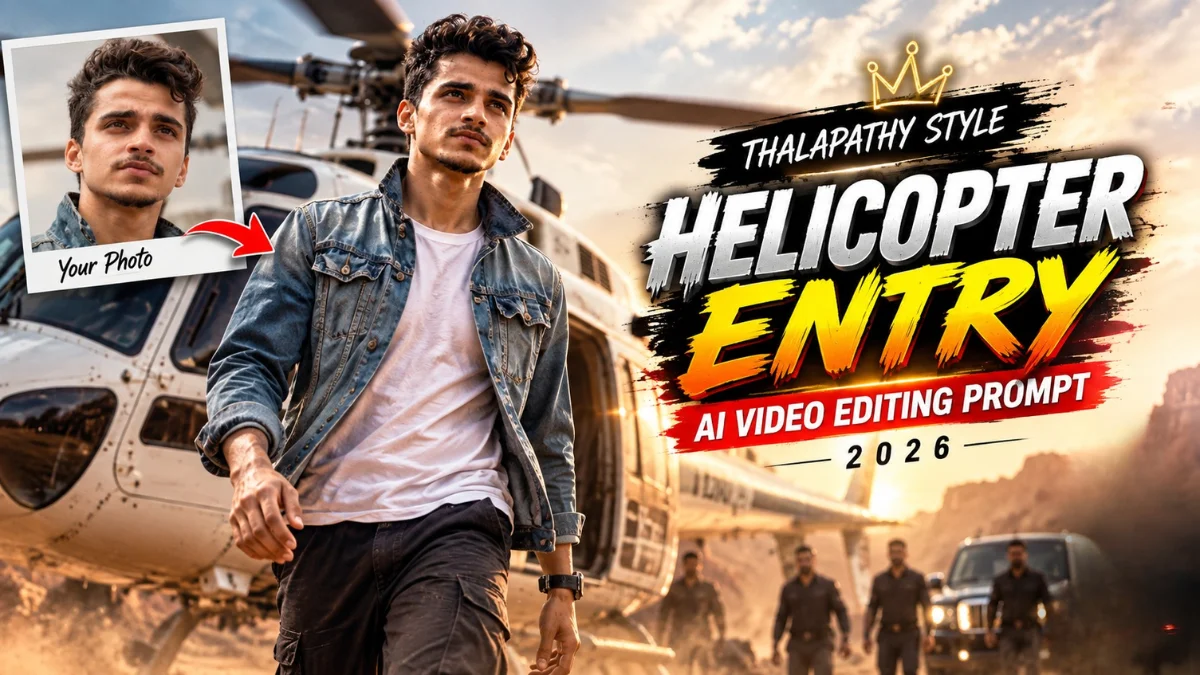
If you spend any time on Instagram Reels, you already know the helicopter hero entry trend is everywhere right now. Everyone wants that classic South Indian movie entry—stepping out of a white chopper in slow-mo like Thalapathy Vijay in Leo while the dust blows and the camera zooms right in. You do not need a film set, rented chopper, or green screen for this. You just need one good photo of yourself and free AI tools to pull it off.
The secret to getting that pure 4K movie look without turning your face into a cartoon comes down to two easy steps. First, you lock your face and outfit into a solid landing photo. Second, you run that photo through Google Flow to bring the helicopter blades, wind, and slow-motion walking to life. Here are the exact copy-paste prompts we use on vnqrcodes.in so you can make your own viral reel in minutes.
Why This Thalapathy Vijay Helicopter Entry Trend is Exploding on Reels
South Indian action cinema is famous for creating unmatched theater euphoria through slow-motion protagonist introductions. This trend taps directly into that mass appeal:
Massive Visual Impact: The combination of an imposing white helicopter, spinning rotor blades, dust clouds, and dark sunglasses creates instant curiosity within the first 2 seconds.
Effortless Celebrity Aesthetic: Creators can showcase themselves in an ultra-luxurious, powerful hero avatar without spending a single rupee on production gear or location permits.
High Instagram Retention: The slow camera push-in paired with suspenseful cinematic pacing keeps viewers hooked past the 3-second mark, signaling the algorithm to push your reel straight to the Explore page.
Audio Synchronization: The visual motion aligns effortlessly with booming South Indian BGMs (like Anirudh Ravichander’s Badass or Hukum), giving your audio-synced transitions maximum impact.
ADVERTISEMENT
1. Charcter Scene Image Prompt (Create Your Base Action Frame)
Before generating video motion, you first need a crisp, photorealistic base image where your face, action outfit, and the helicopter background are perfectly aligned. Upload your clear portrait into ChatGPT, Google Gemini, or Bing Image Creator with this formula:
See How Your Video Looks After Editing! 👇

AI PROMPT
REFERENCE IMAGE 1 — CHARACTER IDENTITY Use Image 1 as the PRIMARY and ABSOLUTE CHARACTER IDENTITY REFERENCE. REFERENCE IMAGE 2 — MASTER SCENE / STORYBOARD REFERENCE. Use Image 2 as the EXACT visual composition, scene, camera, framing, pose, environment and cinematic-style reference. Create a highly realistic cinematic vertical 9:16 image/video that recreates the visual sequence shown in Image 2 as accurately as possible. IMPORTANT: Do NOT redesign the character. Do NOT create a different person. Preserve the exact facial identity from Image 1, including exact face shape, facial proportions, eyes, eyebrows, nose, lips, jawline, beard, hairstyle, hairline, skin tone, age appearance and recognizable facial features. Preserve the exact clothing and accessories from Image 1: teal shirt, black trousers, wristwatch, bracelet and all visible accessories. Keep realistic fabric texture and natural clothing folds. MASTER SCENE: A large reddish-brown open quarry with dramatic layered/terraced rocky terrain under a pale cloudy sky. A realistic white helicopter is parked in the quarry with its side doorway open. RECREATE THE STORYBOARD SHOTS EXACTLY IN THIS VISUAL ORDER: SHOT 1 — 0.00–1.90s: EXTREME TIGHT CLOSE-UP. Show only the character’s lower leg and dark shoe stepping outward through the open side doorway of the white helicopter. Camera extremely close to the helicopter doorway and positioned very low. Tight vertical composition. Realistic shoe, trouser fabric and helicopter doorway details. Slow controlled cinematic movement feeling. SHOT 2 — 1.90–3.70s: CLOSE SIDE SHOT. The exact same character is emerging from the helicopter doorway. One hand firmly grips the helicopter doorway/frame. Upper body leans outward. Head slightly lowered. White helicopter dominates the surrounding frame. Low-angle cinematic perspective. SHOT 3 — 3.70–5.10s: EXTREME CLOSE-UP PORTRAIT. Show the character’s exact face from Image 1. Serious, calm, composed expression. No smile. Head and chin slightly raised. Eyes looking slightly upward/forward. Pale sky and a softly blurred portion of the helicopter in the background. Very shallow depth of field. Highly realistic skin and facial texture. SHOT 4 — 5.10–6.50s: WIDE ESTABLISHING SHOT. Reveal the complete white helicopter parked in the huge reddish-brown quarry. The character stands beside the helicopter and begins walking away from it. Show layered quarry cliffs/terraced earth formations. Pale cloudy sky. Warm natural earthy tones. Character remains clearly recognizable. SHOT 5 — 6.50–7.50s: EXTREME CLOSE-UP OF HELICOPTER STRUCTURE. A pale white helicopter structural element crosses the frame diagonally, matching the reference composition. Keep the quarry softly blurred in the background. Do not add unnecessary mechanical components. SHOT 6 — 7.50–8.70s: MEDIUM CLOSE-UP. Character stands beside the white helicopter. Face toward camera. Serious, controlled expression. Helicopter clearly visible behind him. Chest/eye-level camera. Cinematic shallow depth of field. Natural outdoor lighting. SHOT 7 — 8.70–9.45s: WIDER FULL-BODY SHOT. Character walks directly toward the camera across the reddish quarry terrain. Upright confident posture. Natural arm movement. One foot naturally forward. Realistic walking stance and foot placement. Helicopter remains visible behind him. SHOT 8 — 9.45–10.00s: MEDIUM/FULL-BODY CINEMATIC SHOT. Continue the exact forward movement. Character begins raising BOTH hands toward his shirt collar. Hands are just beginning to reach the collar. Serious, stylish cinematic expression. This must look like the exact continuation of Shot 7. FINAL CONTINUITY: The final frame must end with the character moving forward while both hands are beginning to rise toward his collar. Do not reset his body position. Do not change his face. Do not change his clothing. Do not change the environment. VISUAL STYLE: Photorealistic cinematic action-film photography. Ultra-realistic human anatomy. Natural skin pores and facial texture. Realistic teal fabric. Realistic black trousers. Realistic white helicopter materials. Natural outdoor lighting. Subtle atmospheric dust. Cinematic depth of field. Natural motion-blur feeling. High dynamic range. Professional action-film cinematography. Realistic perspective. High detail. Sharp character face. Vertical 9:16 composition. 4K/8K quality. STRICT NEGATIVE PROMPT: different person, identity change, face change, face morphing, facial distortion, altered facial structure, different eyes, different nose, different lips, different jawline, different beard, different hairstyle, different hairline, skin tone change, age change, body proportion change, body shape change, clothing change, different shirt, different shirt color, missing wristwatch, missing bracelet, accessory change, duplicate character, extra person, extra limbs, extra fingers, fused fingers, malformed hands, malformed feet, distorted body, unnatural walking, sliding feet, floating feet, robotic movement, CGI, cartoon, anime, illustration, plastic skin, fake face, blurry face, low detail, over-smoothed skin, excessive sharpening, fake expression, smile, background replacement, different helicopter, extra helicopter, helicopter deformation, changing quarry, random objects, random camera angle, random zoom, random rotation, excessive camera shake, flickering, temporal inconsistency, incorrect shot order, incorrect pose, incorrect framing, unrealistic perspective. ABSOLUTE REFERENCE PRIORITY: Image 1 = EXACT CHARACTER IDENTITY. Image 2 = EXACT SCENE, COMPOSITION, POSE, CAMERA AND VISUAL REFERENCE. Do not reinterpret the reference. Do not redesign anything. Match the reference as closely as possible while replacing the reference character with the exact person from Image 1. IMPORTANT FINAL INSTRUCTION: Remove all unnecessary gaps, blank spaces and interruptions between the prompt sections. Keep the entire prompt as one continuous, seamless instruction while preserving the shot order and all details.
2. Helicopter Entry Video Prompt - Google Flow (Animate the Landing Scene)
Once your base hero image is generated from Step 1, open Google Flow (or your chosen video animation workspace). Upload that generated image into the Image-to-Video module, choose a 9:16 vertical canvas, and paste this motion prompt:
AI PROMPT
Create the FIRST 10 SECONDS of the uploaded reference video as accurately as possible. Use the uploaded image as the PRIMARY CHARACTER IDENTITY REFERENCE. Preserve the exact face, facial features, hairstyle, skin tone, body proportions, teal shirt, black trousers, wristwatch and all visible accessories. Do not change or redesign the person. Use the uploaded reference video as the EXACT motion, camera, framing, timing and visual-style reference. 0.00–1.90 seconds: Start with an extremely tight cinematic close-up of the helicopter doorway/lower doorway area. A man’s lower leg and dark shoe move outward through the open side doorway of a white helicopter. Keep the camera very close and low. Preserve the tight vertical 9:16 composition and slow controlled movement. 1.90–3.70 seconds: Hard cut to the side of the white helicopter. The main character emerges from the open doorway. One hand holds/grips the helicopter doorway while his upper body leans outward. His head is initially slightly lowered. Camera remains close to the helicopter with a slightly low-angle perspective. 3.70–5.10 seconds: Hard cut to an extreme close-up of the character’s face. Use the uploaded person’s exact face and identity. He has a serious, composed expression and looks slightly upward/forward. Do not make him smile. Keep the pale sky and part of the helicopter softly visible behind him. Use shallow depth of field. 5.10–6.50 seconds: Hard cut to a wide establishing shot. Reveal the white helicopter on a large reddish-brown open quarry landscape with layered/terraced earth formations. The main character is beside the helicopter and begins moving away from it. Preserve the pale sky, warm earthy tones and cinematic atmosphere. 6.50–7.50 seconds: Hard cut to a close-up of the helicopter exterior/structural area. A pale helicopter structural element crosses the frame diagonally. Reproduce the visible movement and perspective change from the reference. Do not invent unnecessary mechanical details. 7.50–8.70 seconds: Hard cut back to a medium close-up of the character beside the helicopter. He faces toward camera with a serious, controlled expression. Keep the helicopter visible behind him. Camera is approximately chest/eye level with cinematic shallow depth of field. 8.70–9.45 seconds: Cut to a wider/full-body shot. The character walks toward the camera across the reddish quarry terrain. Maintain upright posture, natural arm movement, realistic foot placement and steady walking speed. 9.45–10.00 seconds: Continue the forward movement and begin the next action naturally: the character starts bringing both hands upward toward his shirt collar. End the video with his hands beginning to reach the collar so the next 10-second clip can continue from this exact physical position. VISUAL STYLE: Photorealistic cinematic action-film footage, realistic human anatomy, realistic skin and fabric, natural outdoor lighting, subtle cinematic motion blur, realistic depth of field, high detail, 30fps-style smooth motion, vertical 9:16. NEGATIVE PROMPT: face change, identity change, different person, face morphing, facial distortion, hairstyle change, hairline change, beard change, skin tone change, age change, body distortion, body proportion change, clothing change, teal shirt changing color, black trousers changing, missing wristwatch, accessory change, duplicate character, extra characters, unwanted objects, extra helicopter, changing helicopter, changing quarry, background replacement, extra limbs, extra fingers, fused fingers, malformed hands, malformed feet, unnatural walking, sliding feet, floating body, robotic movement, fake expression, exaggerated smile, flickering, morphing, temporal inconsistency, background flicker, camera glitch, random zoom, random orbit, random rotation, excessive camera shake, sudden scene change, wrong shot order, wrong timing, low quality, blurry face, plastic skin, CGI appearance, cartoon, anime, unrealistic physics. ABSOLUTE CONTINUITY LOCK: The uploaded image controls the character’s exact identity and appearance. The uploaded video controls the motion, timing, camera movement, framing and visual dynamics. Keep the exact same face, hairstyle, skin tone, teal shirt, black trousers, wristwatch and body proportions throughout. Maintain consistent identity, clothing, lighting, environment and physical proportions across every shot. Do not reset, redesign, morph or replace the character between cuts. Every shot must connect naturally according to the reference video. End exactly with the character moving forward and both hands beginning to rise toward his collar. The next clip must begin from this exact ending pose, body position, hand position, camera relationship and forward motion without resetting the character..
Step-by-Step Guide: How to Generate Your Helicopter Entry Reel
Follow these structured steps to turn your portrait into a polished cinematic sequence without facing weird facial warping:
Step 1: Select a Clear Front Portrait Pick a high-resolution, unedited portrait photo where your face, jawline, and eyes are clearly visible without heavy blur or awkward angles.
Step 2: Generate the Base Hero Photo Upload your portrait into your AI image generator alongside the Hero Landing Scene Image Prompt. Ensure the output looks photorealistic with the helicopter, sunglasses, and dust details sharp.
Step 3: Open Google Flow Workspace Launch Google Flow on your desktop or mobile browser and navigate directly to the image-to-video workflow.
Step 4: Upload Your Hero Image & Add Motion Prompt Upload the image generated in Step 2 as your visual anchor. Paste the Google Flow Video Animation Prompt into the input box to define realistic forward walking motion and rotor blur.
Step 5: Export and Add Background Music Download the rendered video in full HD or 4K. Import the clip into VN Video Editor, add helicopter sound effects, and layer a trending South Indian mass BGM before posting.
Edit Your Video: Add Custom Songs & Transitions
Once your AI video is generated and downloaded, the real fun begins. You can import the clip directly into VN Video Editor or CapCut to give it your own personal touch.
Add your favorite trending South Indian mass BGM, phonk beats, or high-energy dialogue audio that matches your style. You can also drop in smooth flash cuts, shake effects, or speed-ramping right when you step out of the chopper. If you want quick aesthetic transitions without manual editing, simply scan any verified trending vn code from vnqrcodes.in to apply pre-made beat effects in just one tap.
Pro Editing Tips to Make It Viral on Instagram
To turn your raw AI video into a polished reel ready for maximum shares, apply these quick post-processing touches inside VN Video Editor:
Layer Realistic Audio Effects: Don't rely solely on music. Download a free helicopter rotor sound effect and crossfade it with heavy bass drops just as you walk forward.
Add Subtle Screen Shake: Apply a mild camera shake in VN Video Editor at the moment of your first step to simulate the heavy vibration of helicopter blades.
One-Click Transitions with VN QR Codes: If you want to show a "before and after" transition (your normal casual selfie switching into the mass hero landing), scan any verified trending vn code from vnqrcodes.in to apply instant beat cuts and velocity curves.
Frequently Asked Questions (FAQs)
Q1. Is this Thalapathy Vijay style helicopter AI video prompt free to copy?
Yes, all image prompts, animation formulas, and vn qr codes shared on vnqrcodes.in are completely free to use.
Q2. Why is creating the base image first necessary before video animation?
Generating a sharp base image locks your facial structure, dark jacket, and helicopter details in high resolution, allowing Google Flow to focus purely on smooth motion without distorting your face.
Q3. Which background music works best for this helicopter entry reel?
High-energy South Indian cinema theme tracks (such as songs from Leo, Jailer, Master, or Vikram) deliver the best viral impact when synchronized to the slow-motion walking scene.
Q4. Can I customize the helicopter color or clothing in the prompt?
Yes, simply change "modern white helicopter" to "matte black attack chopper" or replace the dark jacket with a traditional South Indian white shirt for a classic mass look.
Conclusion
Creating a legendary South Indian blockbuster hero entry no longer requires millions in production budget or heavy film equipment. By combining targeted image generation with Google Flow’s video animation, you can transform a single portrait into a jaw-dropping cinematic reel right from your smartphone. For more trending reel setups, velocity curves, and transition templates, explore our complete VN QR Code Template List and visit the Viral VN Codes collection daily!
ADVERTISEMENT
🔥 Trending for You
Viral Mercedes Car AI Video Editing Prompt 2026 | Instagram Trend
Mercedes Car AI Video Editing Prompt 2026 | Google Flow Viral Trend
Happy Birthday Bestie Collage VN QR Codes Free Download
Aayene Me Dekho Zara Khud Ko VN QR Codes Download
Tere Ki Lagde Punjabi Song VN QR Codes Download